Smart Vendor Recommendations
DreamPlan can suggest vendors that are a strong match for your event, saving you time browsing the full directory. Recommendations are based on your event details and appear automatically as you plan.
Overview
The smart recommendations engine analyses your event’s type, date, location, and budget to surface vendors most likely to be a good fit. Recommendations are rule-based — they match vendor attributes (category, availability, service area, price range) against your event details. No guesswork, no hidden algorithms — just practical matching to help you find the right people faster.
How Matching Works
Recommendations are generated using four key factors from your event:
| Factor | How It Is Used |
|---|---|
| Event Type | Different event types need different vendor mixes. A wedding surfaces photographers, florists, and celebrants; a corporate event surfaces AV technicians, caterers, and venues. |
| Event Date | Only vendors available on your event date are recommended. Vendors with confirmed bookings on that date are excluded. |
| Location | Vendors whose service area includes your event location are prioritised. Local vendors are ranked higher than those who would need to travel long distances. |
| Budget | Your budget range is matched against vendor price ranges ($, $$, $$$, $$$$). Vendors whose pricing fits within your budget appear first. |
How Scoring Works
Each vendor in the directory is scored against these four factors. Vendors with the highest match scores appear at the top of your recommendations. A vendor must match on at least event type and date availability to appear at all.
Tip: The more event details you fill in (especially date, location, and budget), the better your recommendations will be.
Where Recommendations Appear
Recommendations surface in two places:
1. Vendor Tab — Recommendations Section
When you open the Vendors tab in your event, a Recommended for You section appears at the top, above the full directory. This section shows:
- A curated list of recommended vendors, sorted by match score.
- Each vendor’s profile card with price range, rating, response time, and a match indicator.
- Quick actions to shortlist, compare, or send an enquiry directly from the recommendation card.
2. Event Dashboard — Vendor Widget
The event dashboard includes a vendor widget that highlights:
- The top 3 recommended vendors you have not yet contacted.
- A prompt to browse more recommendations in the Vendors tab.
This keeps recommendations visible even when you are not actively browsing vendors.
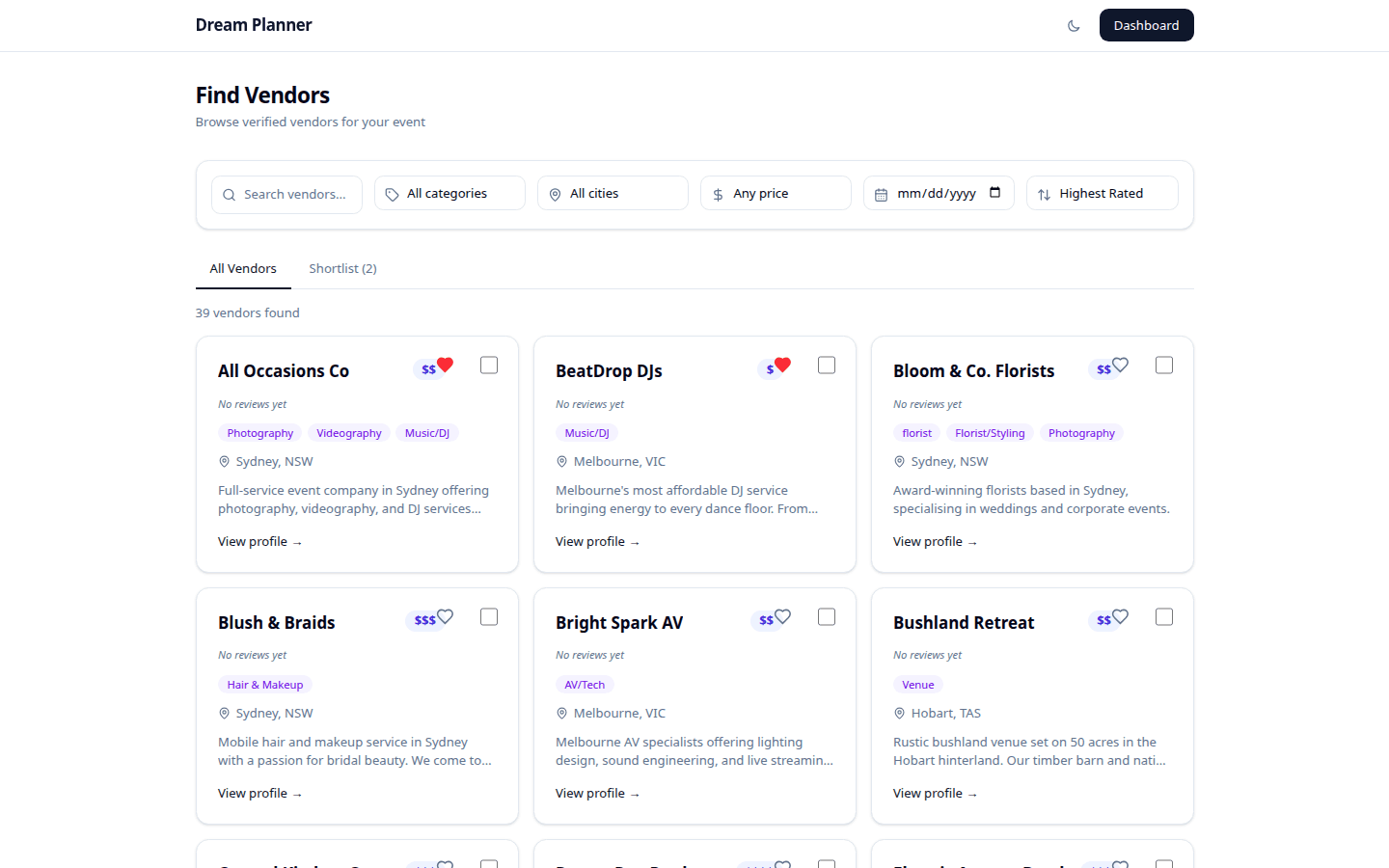 The vendor directory with recommended vendors and match indicators.
Using Recommendations
When you see a recommended vendor you like:
- Click the vendor card to view their full profile.
- Shortlist them by clicking the heart icon if you want to save them for later.
- Compare them with other vendors using the comparison tool (up to 4 side-by-side).
- Add to Event and send an enquiry when you are ready.
Recommendations work exactly like any other vendor in the directory — all the same tools (shortlisting, comparison, enquiry, status tracking) apply.
Dismissing Recommendations
If a recommendation is not relevant:
- Click the dismiss button (X icon) on the recommendation card.
- The vendor is removed from your recommendations list.
Dismissed vendors remain in the full directory — you can still find and add them manually if you change your mind.
Tip: Dismissing irrelevant recommendations helps refine the list so the remaining suggestions are more useful.
Tips
- Fill in your event details completely — date, location, and budget are the biggest drivers of good recommendations. Missing details mean less accurate matches.
- Check recommendations early — popular vendors book up quickly. The sooner you see who is available, the more options you have.
- Dismiss vendors you are not interested in — this keeps the recommendations list focused and useful.
- Use recommendations as a starting point — they are great for discovering vendors you might not have found on your own, but always browse the full directory too.
FAQ
Are recommendations paid or sponsored? No. Recommendations are based solely on how well a vendor matches your event details. There is no pay-to-rank system.
Why am I not seeing any recommendations? Make sure your event has a date, location, and event type set. Without these details, the matching engine does not have enough information to generate recommendations.
Do recommendations update as I change event details? Yes. If you change the date, location, budget, or event type, recommendations are recalculated automatically.
Can I see why a vendor was recommended? The match indicator on each recommendation card shows which factors matched (for example, “Available on your date, within budget, serves your area”).
Do dismissed vendors come back? No. Once dismissed, a vendor stays off your recommendations list for that event. You can still find them in the full directory.
Are recommendations available for all event types? Yes. Recommendations work for every event type, though the specific vendor categories surfaced will differ based on the type.