Templates
Overview
Templates let you save reusable messages that you can insert into conversations with a single click. Each template supports dynamic placeholders that are automatically replaced with the client’s details when used. You can also configure auto-reply so new enquiries receive an instant response even when you are away.
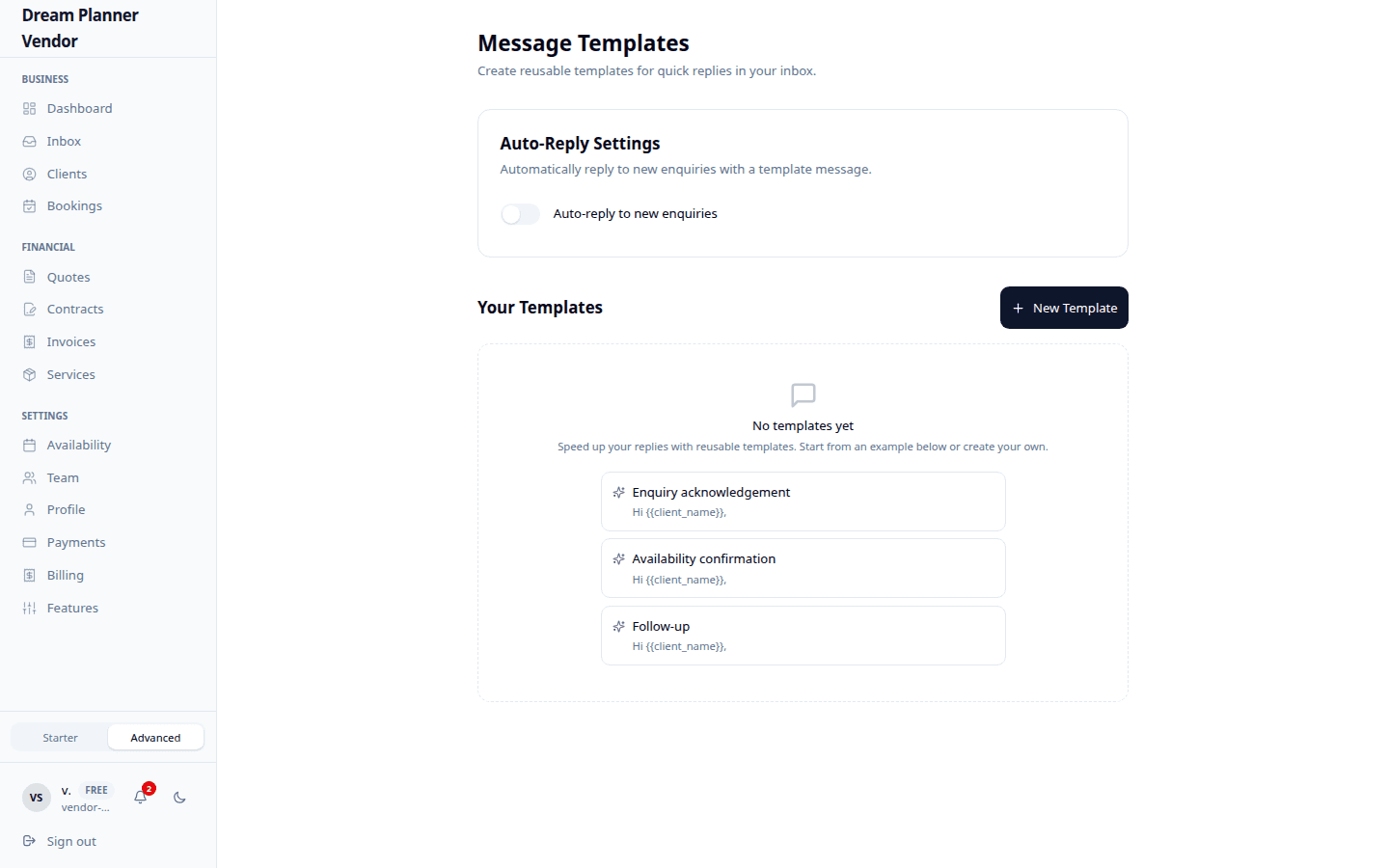 The templates manager with reusable message templates and auto-reply configuration.
Creating a Template
- Navigate to Templates from the sidebar and click New Template.
- Fill in the following fields:
| Field | Description |
|---|---|
| Name | A label for your own reference (e.g. “Initial Enquiry Response”). Not shown to clients. |
| Subject | The subject line used when the reply is sent via email. |
| Body | The message content. Use placeholders for dynamic values. |
- Click Save.
Variable Placeholders
Placeholders are special tokens that get replaced with real values when you use the template in a conversation.
| Placeholder | Replaced With |
|---|---|
{client_name} | The client’s name |
{vendor_name} | Your business name |
{event_date} | The event date from the enquiry |
{quote_link} | A link to the relevant quote |
Example template body:
Hi {client_name},
Thank you for reaching out to {vendor_name}! We would love to be part of your event on {event_date}.
I have put together a quote for you here: {quote_link}
Let me know if you have any questions.
When used in a conversation, the placeholders are replaced with the actual client name, your business name, the event date, and a working link to the quote.
Editing and Deleting Templates
- To edit a template, click on it in the Templates list, make your changes, and click Save.
- To delete a template, open it and click Delete. Confirm the deletion when prompted. Deleting a template does not affect messages that were already sent using it.
Auto-Reply Configuration
Auto-reply sends a template automatically when a new enquiry arrives. This ensures every client receives an immediate acknowledgement.
- Go to Templates.
- Select the template you want to use as your auto-reply.
- Toggle Set as Auto-Reply to on.
- Save.
Only one template can be set as the auto-reply at a time. When a new enquiry comes in, the selected template is sent immediately with placeholders filled in.
Tip: Keep your auto-reply short and friendly. Let the client know you received their enquiry and will follow up soon with more details.
Using Templates in the Inbox
- Open a conversation in the Inbox.
- Click the Template button next to the reply text box.
- Select a template from the list.
- The template body is inserted into the reply box with placeholders already replaced.
- Review the message, make any adjustments, and send.
Suggested Template Examples
Here are four templates to get you started. Customise them to match your voice and style.
Initial Enquiry Response
Name: Initial Enquiry Response Subject: Thanks for your enquiry! Body:
Hi {client_name},
Thank you so much for getting in touch with {vendor_name}! I am thrilled you are considering us for your event.
I would love to learn more about your plans. Could you share a few details about the date, venue, and what you are envisioning? This will help me put together the best possible proposal for you.
Looking forward to hearing from you!
Quote Follow-Up
Name: Quote Follow-Up Subject: Following up on your quote Body:
Hi {client_name},
Just a quick note to follow up on the quote I sent over for your event on {event_date}. You can review it here: {quote_link}
If you have any questions or would like to adjust anything, I am happy to chat. No pressure at all — just want to make sure you have everything you need to make a decision.
Booking Confirmation
Name: Booking Confirmation Subject: You are booked! Body:
Hi {client_name},
Great news — your booking with {vendor_name} for {event_date} is confirmed! I am so excited to be part of your special day.
I will be in touch closer to the date with all the details. In the meantime, please do not hesitate to reach out if anything comes up.
Thank You
Name: Post-Event Thank You Subject: Thank you! Body:
Hi {client_name},
Thank you for choosing {vendor_name} for your event. It was an absolute pleasure working with you!
If you have a moment, I would really appreciate a review or referral. It means the world to small businesses like mine.
Wishing you all the best!
Tips
Tip: Create at least four templates: an initial response, a quote follow-up, a booking confirmation, and a thank-you message. These cover the most common touchpoints in the client journey.
Tip: Personalise the auto-reply template so it does not feel generic. Mention your business name and a warm greeting.
Tip: Review and update your templates periodically. As your services or pricing change, make sure your templates reflect the latest information.
Tip: You can always edit a template-generated message before sending. Use the template as a starting point and add personal touches for each client.
FAQ
How many templates can I create? There is no limit. Create as many as you need for different scenarios.
Can I use placeholders in the subject line?
Yes. Placeholders like {client_name} work in both the subject and body fields.
What happens if a placeholder cannot be filled in? If the system does not have a value for a placeholder (for example, the event date has not been set), the placeholder text may appear as-is. Review the message before sending to catch any unfilled placeholders.
Can I set multiple auto-replies? No. Only one template can be the active auto-reply at a time.
Does changing a template affect previously sent messages? No. Sent messages are not retroactively updated. Changes only affect future uses of the template.