Managing Your Profile
Overview
Your vendor profile is the first thing planners see when they browse the DreamPlan directory. A complete, well-maintained profile builds trust, improves your visibility in search results, and increases the likelihood of receiving enquiries. This page explains how to edit every part of your profile, manage your gallery, and troubleshoot common issues.
Profile Fields
Navigate to Profile from the sidebar to view and edit your information. The following fields are available:
| Field | Description | Notes |
|---|---|---|
| Business Name | Your trading name | Displayed on vendor cards and in search results |
| Primary contact email | Used for enquiry notifications | |
| Phone | Business phone number | Visible to planners who view your full profile |
| Website | Your business website URL | Opens in a new tab from your profile |
| Bio | Description of your services and style | Supports plain text; aim for 100 to 300 words |
| Categories | Service types you offer | Choose from: photographer, videographer, florist, caterer, DJ/band, venue, cake, decor, planner |
| Location | City, state, and country | Determines your visibility in location-based searches |
| Price Range | Your pricing tier | Budget, Mid-Range, Premium, or Luxury |
To edit a field, click on it, make your changes, and click Save.
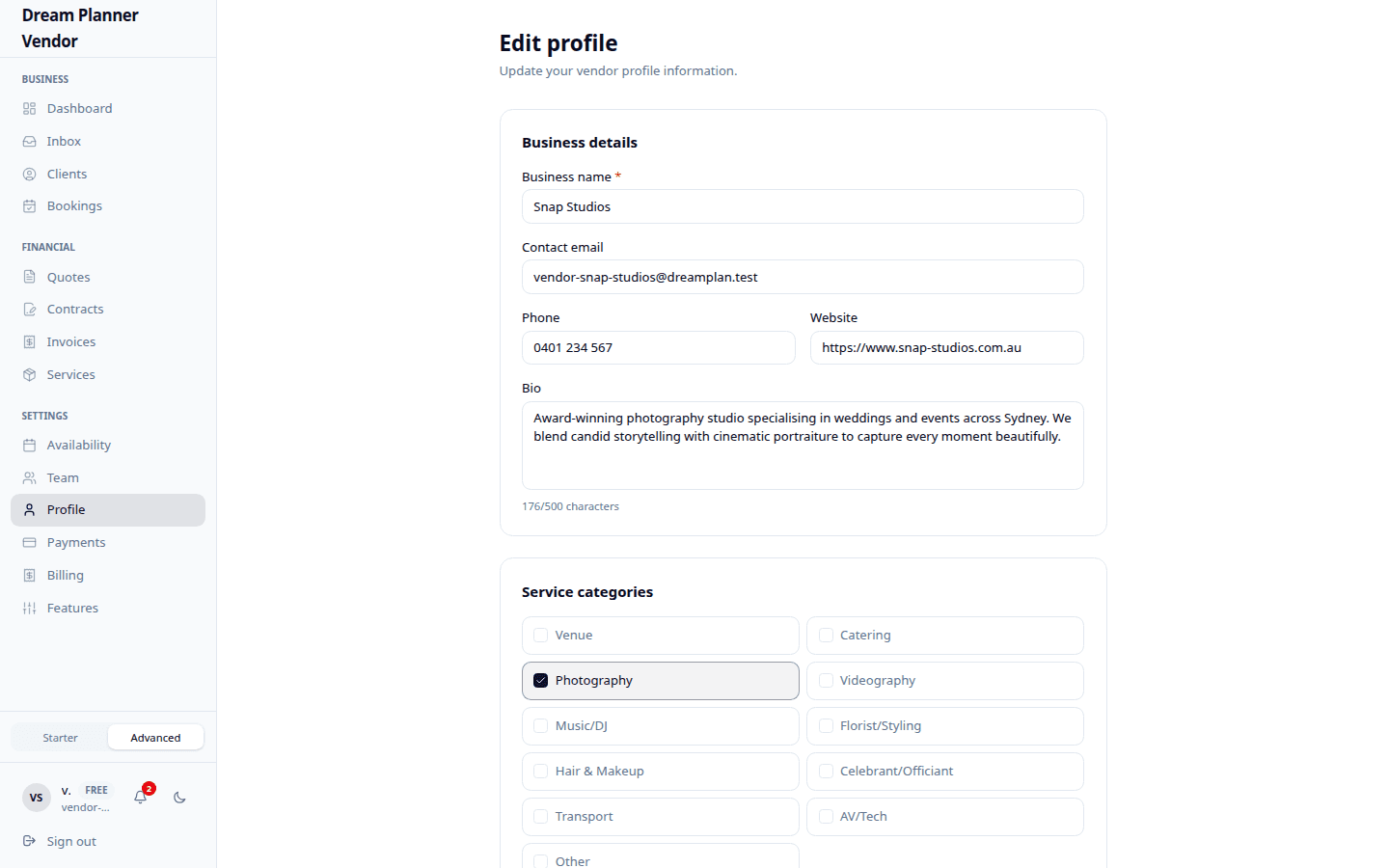 The vendor profile editor showing business details, categories, and pricing tier.
How Your Profile Appears
Your profile information is displayed in two places:
- Vendor Cards — The compact card shown in directory listings and search results. It displays your business name, primary category, location, price range, SLA badge, and a thumbnail from your gallery.
- Full Profile Page — When a planner clicks on your card, they see your complete profile including bio, all categories, gallery images, contact details, and availability status.
Categories
You can select multiple categories if your business spans more than one service type. For example, a studio that offers both photography and videography should select both.
- Go to Profile.
- Scroll to the Categories section.
- Check or uncheck categories as needed.
- Click Save.
Your vendor card will display your primary category. All selected categories are shown on your full profile page.
Verified Badge
The verified badge is a visual indicator that the DreamPlan admin team has reviewed and approved your business. It appears as a checkmark icon next to your business name on vendor cards and your profile page.
- The badge is granted automatically when your onboarding application is approved.
- You cannot manually request or remove the badge.
- If your account is flagged for any reason, the badge may be temporarily removed pending review.
Tip: The verified badge is one of the first things planners look for. It signals that your business has been vetted and is a legitimate service provider.
Gallery Management
Gallery images showcase your work and give planners a feel for your style. Profiles with gallery images receive significantly more enquiries than those without.
Uploading Images
- Go to Profile and scroll to the Gallery section.
- Click Upload Images.
- Select one or more image files from your device. Supported formats include JPEG, PNG, and WebP.
- Wait for the upload to complete. A thumbnail preview appears for each image.
- Click Save to confirm.
Reordering Images
Drag and drop images within the gallery to change their order. The first image is used as your vendor card thumbnail.
Removing Images
Click the delete icon on any image thumbnail to remove it. Confirm the deletion when prompted.
Tip: Use high-quality, well-lit images that represent your best work. Aim for at least 5 to 10 images covering a range of event types.
Troubleshooting: Ghost Listing
A ghost listing occurs when your profile appears in the directory but shows incomplete or outdated information. This can happen if:
- You saved a partial profile during onboarding and were approved before completing all fields.
- A browser cache is displaying an old version of your profile.
To fix a ghost listing:
- Go to Profile and verify that all fields are filled in correctly.
- Click Save even if you did not change anything. This forces a refresh of your listing data.
- Clear your browser cache or open the directory in an incognito window to confirm the update.
- If the issue persists after 15 minutes, contact support through the admin team.
Tips
Tip: Update your bio seasonally to mention upcoming availability and any new services you are offering.
Tip: Include your city and surrounding areas in your bio text. For example, “Based in Melbourne, available across Victoria” helps planners who search by region.
Tip: Keep your phone number and email current. Enquiries sent to outdated contact details result in missed opportunities.
Tip: Choose your price range honestly. Planners filter by budget, and a mismatch leads to wasted time for both parties.
FAQ
Can I change my business name after onboarding? Yes. Edit the Business Name field on your Profile page and click Save. The change takes effect immediately across the directory.
How many categories can I select? There is no hard limit. Select every category that genuinely describes your services.
What image formats are supported for the gallery? JPEG, PNG, and WebP are all supported.
How do I change which image appears on my vendor card? Drag your preferred image to the first position in the gallery. The first image is used as the card thumbnail.
My profile does not appear in search results. What should I do? Make sure your location is set correctly, at least one category is selected, and your account has been approved. If everything looks correct, try saving your profile again to force a refresh.
Can planners see my phone number and email? Yes. Contact details are visible to planners who view your full profile. Keep them up to date so planners can reach you.