Getting Started as a Vendor
Overview
Before you can start receiving enquiries and managing bookings on DreamPlan, you need to register your business and complete a short onboarding wizard. Once submitted, your application is reviewed by the DreamPlan admin team. After approval, your profile goes live in the vendor directory and planners can start finding you.
This guide walks you through every step from sign-up to your first enquiry.
Registration Flow
- Visit vendor.dreamplan.sagargandecha.dev .
- Click Sign Up and enter your email address and a secure password.
- Check your inbox for a verification email and click the confirmation link.
- Once your email is confirmed, you are taken straight into the onboarding wizard.
The 4-Step Onboarding Wizard
Step 1 — Business Profile
Fill in the basics about your business:
| Field | Description |
|---|---|
| Business Name | Your trading name as clients will see it |
| Primary contact email for enquiries | |
| Phone | Business phone number |
| Website | Your website URL (optional but recommended) |
| Bio | A short description of your business, style, and experience |
Tip: Write your bio in the first person and keep it under 300 words. Mention the types of events you specialise in and what makes your service unique.
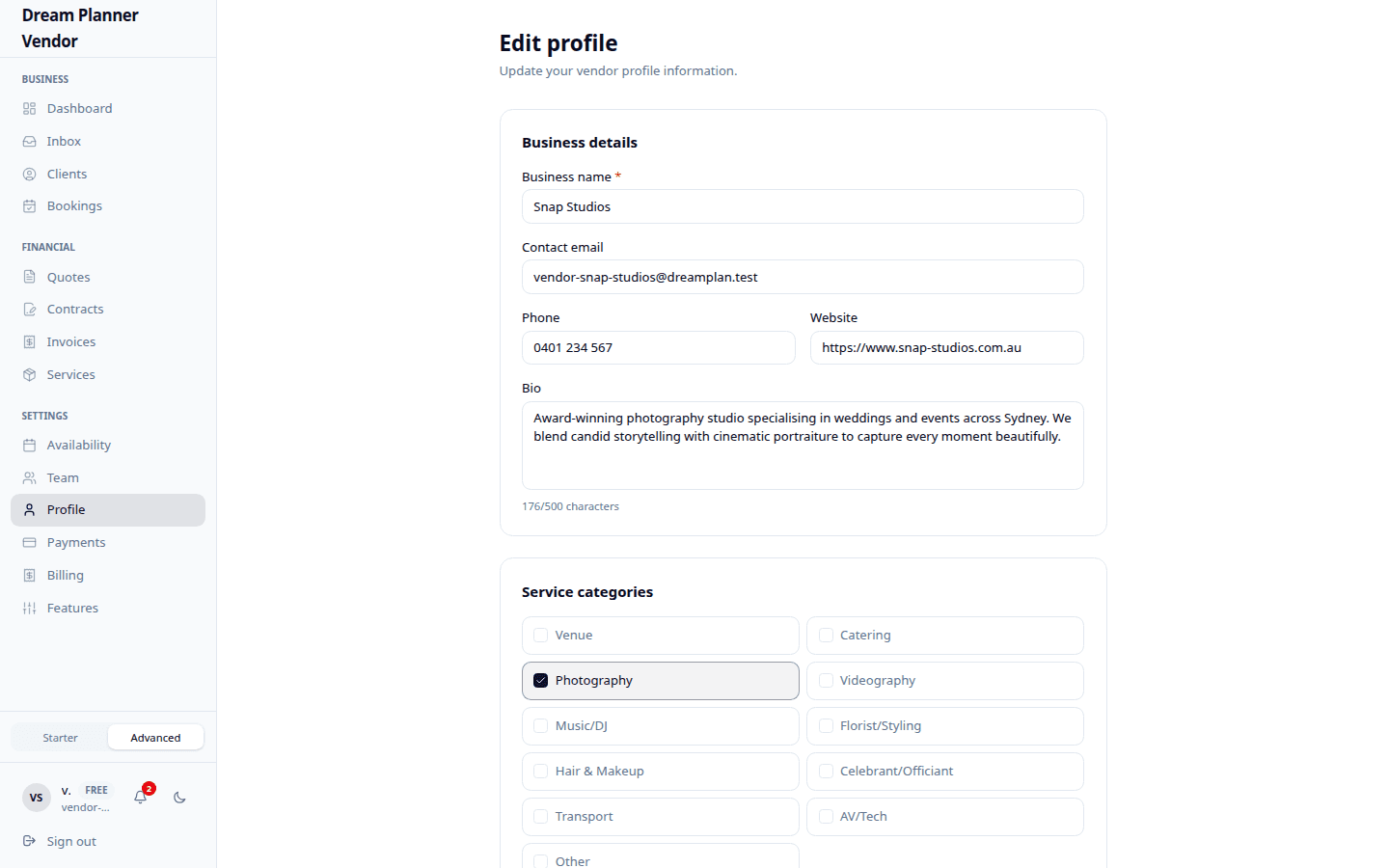 The onboarding wizard where you fill in your business profile details.
Step 2 — Categories and Location
- Categories — Select one or more categories that describe your services. Available categories are: photographer, videographer, florist, caterer, DJ/band, venue, cake, decor, and planner.
- Location — Enter your city, state, and country. This determines where you appear in directory searches.
Step 3 — Pricing
- Price Range — Choose the tier that best reflects your typical pricing: Budget, Mid-Range, Premium, or Luxury. This helps planners filter vendors by budget.
Step 4 — Review and Submit
Review all the details you entered in the previous steps. You can go back and edit any section before submitting. When everything looks correct, click Submit for Review.
What the Admin Team Reviews
After you submit your application, a DreamPlan admin reviews the following:
- Business legitimacy — Does the business name, website, and bio appear to be a genuine event services provider?
- Category accuracy — Do the selected categories match what the business actually offers?
- Location completeness — Is the location information specific enough for planners to find you?
- Profile quality — Is the bio well-written and free of spam or placeholder text?
Verification Timeline
- Most applications are reviewed within 24 to 48 hours on business days.
- You will receive an email notification when your application is approved or if the admin team needs additional information.
- If your application is not approved, the email will explain what needs to be updated. You can edit your profile and resubmit.
Post-Approval Steps
Once approved, your profile is live. Here is what to do next:
- Upload gallery images — Go to your Profile and add photos of your work. Profiles with images receive significantly more enquiries.
- Set your availability — Open the Availability Calendar and mark your upcoming dates so planners know when you are free.
- Create message templates — Set up at least one template for responding to new enquiries, and enable auto-reply.
- Connect Stripe — If you are on the Pro plan, link your Stripe account so you can collect invoice payments directly through the platform.
- Explore the inbox — Familiarise yourself with the Inbox layout so you are ready when your first enquiry arrives.
Onboarding Checklist
Use this checklist to make sure you have covered everything:
- Email verified
- Business profile completed (name, email, phone, bio)
- At least one category selected
- Location set (city, state, country)
- Pricing tier chosen
- Application submitted and approved
- Gallery images uploaded
- Availability calendar updated
- At least one message template created
- Auto-reply enabled
- Stripe connected (Pro plan)
Tips
Tip: You can start exploring the portal while your application is under review, but your profile will not appear in the directory until approval.
Tip: If you offer services in multiple categories (for example, photography and videography), select all that apply during onboarding. You can update these later from your profile.
Tip: A complete, polished profile with a strong bio and gallery images is the single biggest factor in getting shortlisted by planners.
FAQ
Can I edit my profile after submitting the onboarding wizard? Yes. Once approved, you can update any field on your profile at any time from the Profile page.
What happens if my application is rejected? You will receive an email explaining the reason. Common issues include an incomplete bio or mismatched categories. Update the flagged sections and resubmit.
How long does approval take? Most applications are reviewed within 24 to 48 hours on business days. Complex cases may take slightly longer.
Can I register multiple businesses under one email? No. Each email address is tied to a single vendor account. If you operate multiple brands, register each with its own email.
Do I need a Pro subscription to complete onboarding? No. Onboarding and core portal features are available on the Free tier. Pro is only required for Stripe Connect, analytics, and priority support.