Availability Calendar
Overview
The Availability Calendar lets you manage your schedule visually. Mark dates as available, tentative, or blocked so planners can see when you are free at a glance. You can set individual dates, select ranges, add notes, and use bulk actions to manage your calendar efficiently.
Calendar View
The calendar displays your availability for each day using a colour-coded system.
| Colour | Status | Meaning |
|---|---|---|
| Green | Available | You are free and accepting bookings for this date |
| Yellow | Tentative | You may be available but have not confirmed (e.g. waiting on another client) |
| Red | Blocked | You are not available on this date |
Days without a colour are unset and appear as neutral. Planners viewing your profile will see your availability status for each date.
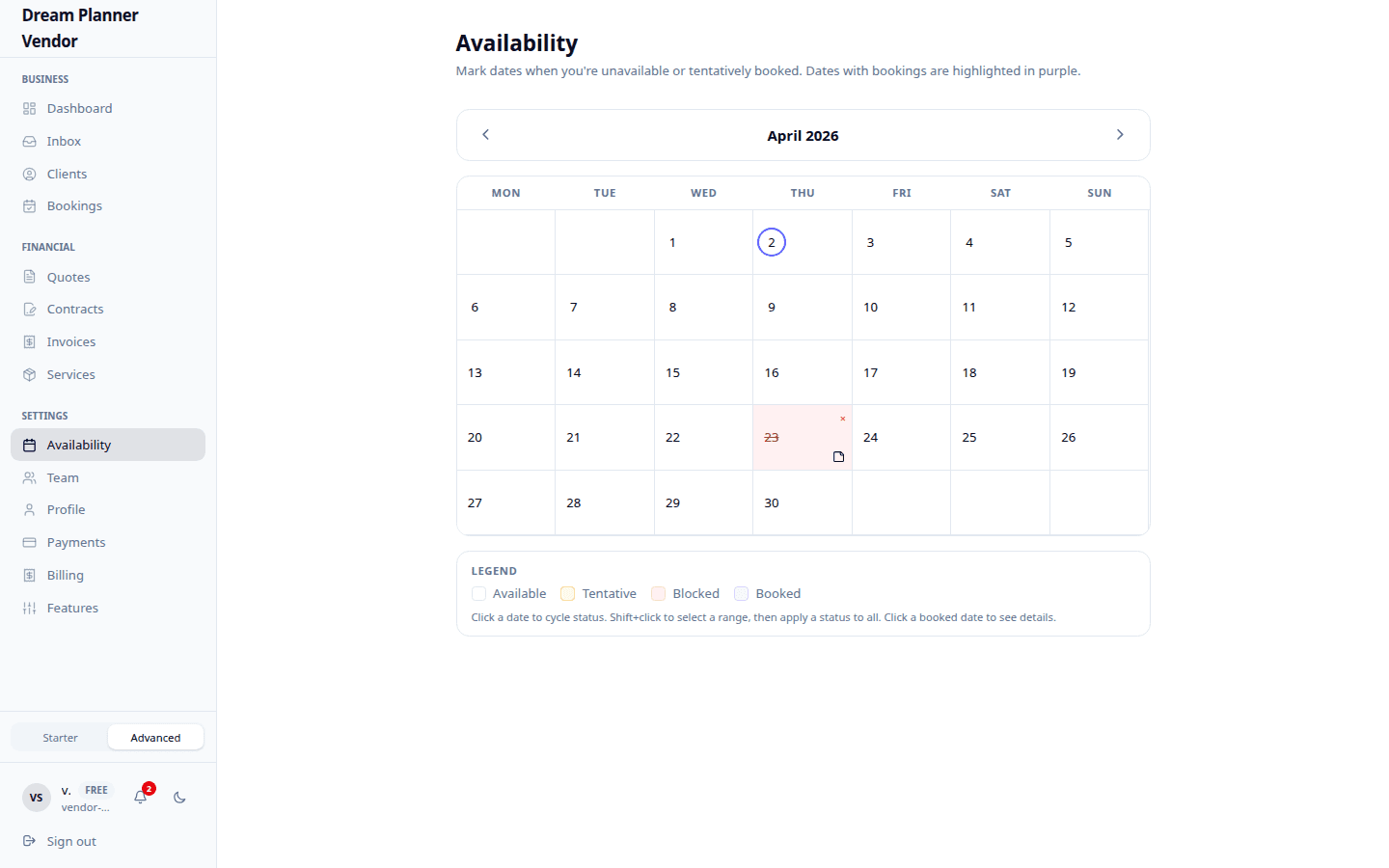 The colour-coded availability calendar showing available, tentative, and blocked dates.
Setting Single Dates
- Navigate to Availability from the sidebar.
- Click on a date in the calendar.
- Select a status: Available, Tentative, or Blocked.
- Optionally add a note (e.g. “Morning only” or “Booked for Johnson wedding”).
- Click Save.
The date updates immediately on the calendar with the corresponding colour.
Setting Date Ranges
To set the same status across multiple consecutive days:
- Click on the start date and drag to the end date, or click the start date and then shift-click the end date.
- Select the status to apply to the entire range.
- Optionally add a note that applies to all dates in the range.
- Click Save.
This is useful for holidays, multi-day events, or periods when you are fully booked.
Bulk Actions
Bulk actions let you manage multiple dates quickly.
- Mark a month as available — Select all dates in a month and set them to Available in one action.
- Block a week — Select a week and mark all dates as Blocked.
- Clear selections — Remove status from multiple dates at once to reset them to unset.
Use bulk actions to set up your calendar at the start of each month, then adjust individual dates as bookings come in.
Adding Notes to Dates
Notes let you add context to any date entry. Notes are visible only to you and are not shown to planners.
Examples of useful notes:
- “AM only — school pickup at 3pm”
- “Second shooter needed”
- “Deposit received from client”
- “Venue setup day — no other bookings”
To add a note, click on a date, enter your note in the text field, and save.
Navigating Between Months
Use the left and right arrows at the top of the calendar to move between months. You can also click the month/year label to jump to a specific month.
Your availability data persists across all months. Dates you set in January remain set when you navigate away and come back.
Syncing with Bookings
When a booking is confirmed through DreamPlan (via an accepted quote or confirmed event), the corresponding date may be automatically updated on your calendar. Check your calendar after confirming a booking to ensure the date reflects the correct status.
If a booking is cancelled, you may need to manually update the date back to Available.
Tip: Make it a habit to review your calendar weekly. Even if bookings sync automatically, a quick manual check ensures nothing falls through the cracks.
Tips
Tip: Use Tentative for dates where you are in discussions with a client but have not confirmed. This lets other planners know the date is not guaranteed.
Tip: Block dates proactively for personal commitments, holidays, and buffer days around large events. It is easier to unblock a date than to manage a double booking.
Tip: Add notes to Blocked dates so you remember why the date was blocked when you review your calendar later.
Tip: Set up your availability at the start of each month using bulk actions, then fine-tune individual dates as enquiries come in.
Tip: Keep your calendar current. An outdated calendar frustrates planners and can lead to missed opportunities.
FAQ
Can planners see my calendar notes? No. Notes are private and visible only to you.
What do planners see on my availability calendar? Planners see the colour-coded status (available, tentative, or blocked) for each date. They do not see your notes or any other private details.
How far in advance can I set availability? You can set availability for any future date. There is no limit on how far ahead you can plan.
What happens if I do not set any availability? Dates without a status appear as neutral. Planners may interpret this as “unknown” and may reach out to ask directly. It is best to actively mark your dates.
Does a confirmed booking automatically block the date? Confirmed bookings may sync to your calendar, but you should always verify. Check your calendar after each booking confirmation.
Can I export my calendar? Calendar export functionality may be available in future releases. For now, manage your availability directly within the portal.
What if I have different availability for morning vs afternoon? Set the date to Available or Tentative and use a note to specify the time constraint (e.g. “Available PM only”). Planners will see the status but not the note, so mention any time restrictions in your conversations.