Stripe Connect
Overview
Stripe Connect is DreamPlan’s payment integration that lets you accept invoice payments directly through the platform. When a client pays an invoice, Stripe processes the transaction, deducts a small platform fee, and deposits the funds into your linked bank account. You do not need to handle payment details manually or chase bank transfers.
Stripe Connect is available exclusively to vendors on the Pro subscription plan.
How Payments Work
Here is the end-to-end payment flow:
- You send an invoice through the DreamPlan vendor portal.
- The client clicks Pay Now on the invoice page and enters their payment details on a secure Stripe checkout page.
- Stripe processes the payment and confirms success.
- A 3% platform fee is deducted from the payment amount.
- The remaining funds are deposited into your linked bank account according to Stripe’s standard payout schedule (typically 2 to 7 business days, depending on your country and account settings).
- The invoice status updates to Paid automatically in your DreamPlan portal.
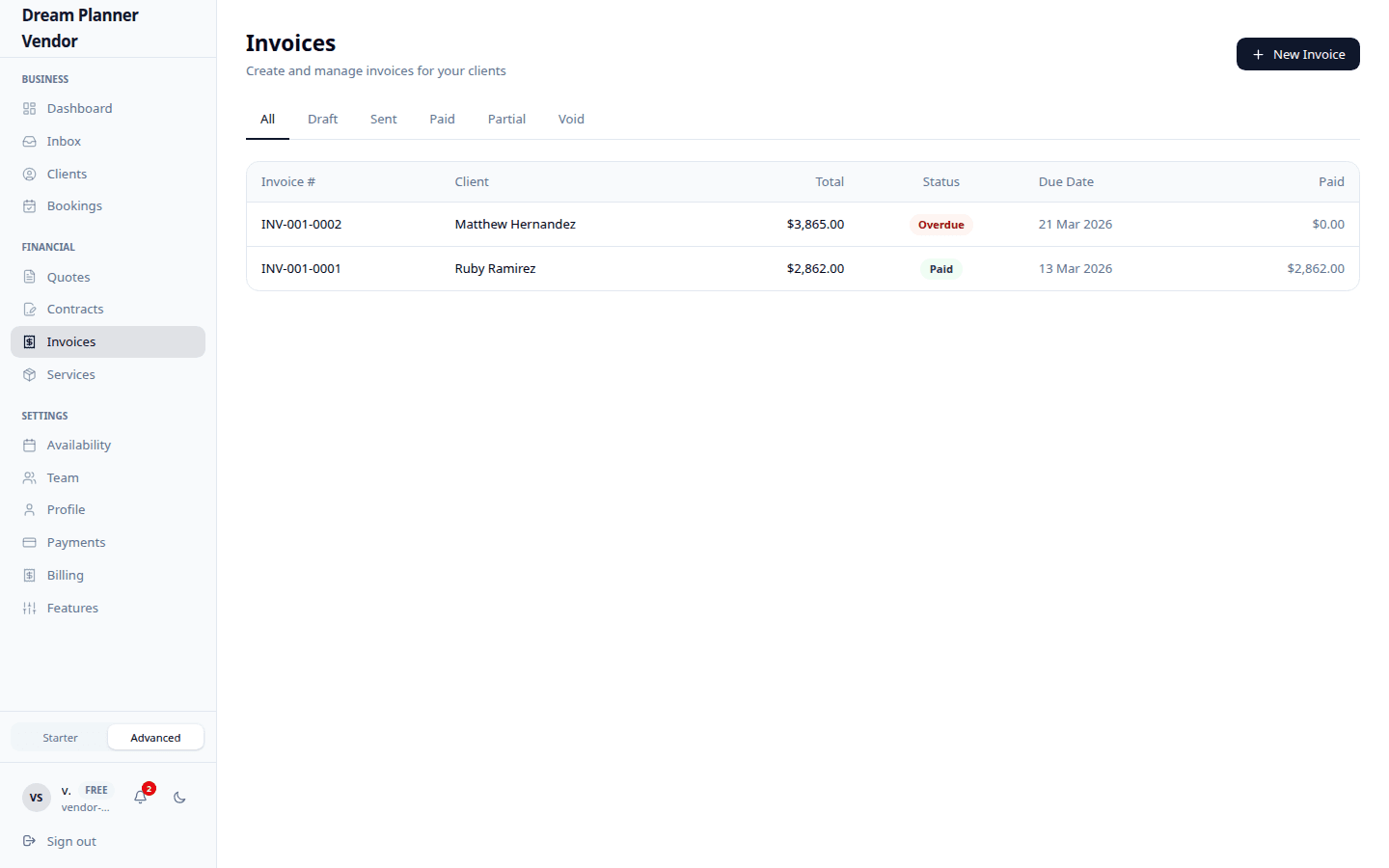 Invoice payments processed through Stripe Connect with automatic status updates.
Fee Structure
| Component | Amount |
|---|---|
| Platform fee | 3% of the invoice total |
| Stripe processing fees | Stripe’s standard fees apply (varies by country and payment method) |
| Payout schedule | Typically 2 to 7 business days |
The 3% platform fee is deducted before the payout reaches your bank account. Stripe’s own processing fees (e.g. card transaction fees) are separate and handled by Stripe directly.
Pro Subscription Requirement
Stripe Connect is only available to vendors on the Pro plan. If you are on the Free tier, you will see a prompt to upgrade when you attempt to connect your Stripe account.
To upgrade:
- Go to Settings in the sidebar.
- Click Subscription.
- Select the Pro plan and complete payment.
Once upgraded, the Stripe Connect option becomes available.
Setting Up Stripe Connect
Step 1 — Start the Connection
- Go to Settings in the sidebar.
- Click Payments or Stripe Connect.
- Click Connect Stripe Account.
Step 2 — Complete Stripe Onboarding
You are redirected to Stripe’s onboarding flow. Stripe will ask for:
- Your business type (individual or company)
- Business details (name, address, tax ID)
- Bank account information for payouts
- Identity verification (may require a government-issued ID)
Complete all required fields. This is a one-time process managed entirely by Stripe.
Step 3 — Return to DreamPlan
After completing Stripe’s onboarding, you are redirected back to the DreamPlan vendor portal. Your Stripe connection status will show as Connected.
From this point, any invoice you send with a Pay Now button will route payments through your connected Stripe account.
Managing Your Stripe Account
Once connected, you can manage your Stripe account in two ways:
- From DreamPlan — Go to Settings > Payments to view your connection status and access basic account information.
- From the Stripe Dashboard — Log in to dashboard.stripe.com to view detailed transaction history, manage payout schedules, update bank details, and handle disputes.
Disconnecting Stripe
If you need to disconnect your Stripe account:
- Go to Settings > Payments.
- Click Disconnect Stripe Account.
- Confirm the disconnection.
After disconnecting:
- The Pay Now button will no longer appear on your invoices.
- Any pending payouts will still be processed by Stripe.
- You can reconnect at any time by repeating the setup steps.
Tip: If you are switching bank accounts, update your details in the Stripe Dashboard rather than disconnecting and reconnecting.
Tips
Tip: Complete Stripe onboarding fully in one session. Partially completed accounts may require you to restart the process.
Tip: Check the Stripe Dashboard regularly for payout status and any action items Stripe may require (such as additional verification).
Tip: Keep your Stripe account details up to date, especially your bank account and contact information, to avoid payout delays.
Tip: The 3% platform fee is competitive with most payment platforms. It covers DreamPlan’s infrastructure costs while keeping your pricing simple.
FAQ
Do I need a Pro subscription to use Stripe Connect? Yes. Stripe Connect is exclusively available on the Pro plan.
What is the 3% platform fee? It is a fee deducted from each payment processed through DreamPlan. For example, on a $1,000 invoice, $30 goes to DreamPlan and $970 (minus Stripe’s own processing fees) is deposited to your account.
How long do payouts take? Stripe typically processes payouts within 2 to 7 business days, depending on your country and account settings. You can view payout status in the Stripe Dashboard.
Can clients pay with credit cards? Yes. Stripe supports all major credit and debit cards, as well as other payment methods depending on your region.
What happens to pending payouts if I disconnect? Pending payouts will still be processed by Stripe. Disconnecting only prevents future payments from being routed through your account.
Is there a minimum invoice amount for Stripe payments? Stripe has its own minimum transaction amounts, which vary by currency and country. Check Stripe’s documentation for current limits.
Can I use my existing Stripe account? Yes. During the Connect setup, you can link an existing Stripe account rather than creating a new one.