Inbox
Overview
The Inbox is the heart of your vendor portal. It is where you receive enquiries from planners, reply to messages, and use AI-powered insights to understand what each client needs at a glance. The three-panel layout keeps everything visible without switching between pages: your conversation list on the left, the active message thread in the centre, and AI insights on the right.
Three-Panel Layout
| Panel | Position | What It Shows |
|---|---|---|
| Conversation List | Left | All your conversations, sorted by most recent activity |
| Message Thread | Centre | The full message history for the selected conversation |
| AI Insights | Right | Automatically extracted details from the conversation |
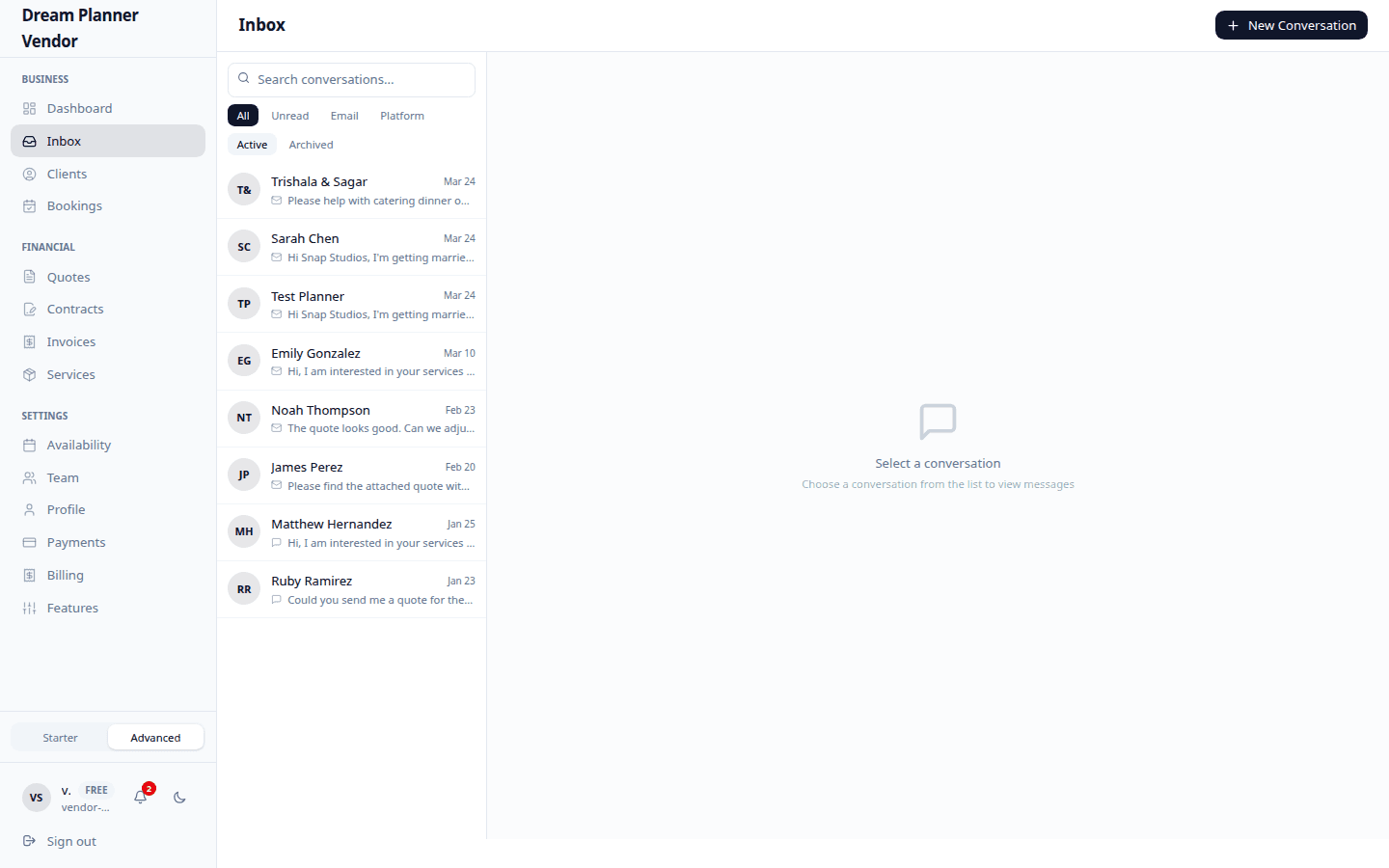 The three-panel inbox layout with conversations, message thread, and AI insights.
Conversation List (Left Panel)
The conversation list shows every enquiry and ongoing conversation. Each entry displays the client name, a preview of the latest message, the timestamp, and an unread count badge if there are new messages.
Searching conversations: Use the search bar at the top of the list to find conversations by client name or message content.
Filtering conversations: Filter by status (all, unread, archived) to focus on the conversations that need your attention.
Unread count: A numbered badge appears next to conversations with unread messages. The total unread count is also shown on the Inbox icon in the sidebar.
Message Thread (Centre Panel)
Selecting a conversation opens the full message thread in the centre panel. Messages are displayed in chronological order.
Channel badge: Each message displays a badge indicating how it was received — Email or Platform. This helps you understand whether the client contacted you through the DreamPlan messaging system or via email.
Replying to messages: Type your reply in the text box at the bottom of the thread. Press Cmd+Enter (Mac) or Ctrl+Enter (Windows/Linux) to send. There is a character limit per message to keep communications focused.
Using the template picker:
Click the Template button next to the reply box to insert a saved template. Variables like {client_name} and {event_date} are automatically replaced with the client’s details. See the Templates page for setup instructions.
Archiving conversations: To archive a conversation, click the archive icon on the conversation entry. Archived conversations are hidden from your default view but can be found using the archive filter.
AI Insights Panel (Right Panel)
The AI Insights panel automatically analyses the conversation and extracts key details so you do not have to re-read every message.
Extraction Types
| Insight | Description |
|---|---|
| Event Date | The date of the event mentioned in the conversation |
| Budget | The client’s stated or implied budget |
| Availability | Whether the client has asked about your availability for specific dates |
| Enquiry Type | The nature of the enquiry (new booking, pricing question, availability check, etc.) |
| Action Required | A suggested next step based on the conversation (reply, send quote, confirm booking) |
| Price Quote | Any pricing figures mentioned in the conversation |
| Guest Count | The expected number of guests |
| Venue Preference | The client’s preferred venue or venue type |
Dismissing insight cards: If an insight card is inaccurate or no longer relevant, click the dismiss icon to remove it from the panel. Dismissed cards do not reappear for that conversation.
Client Context
Below the AI insights, you will find a client context section that includes:
- Status — The current stage of the client in your CRM pipeline (lead, enquired, quoted, booked, completed, lost).
- Contact details — Email and phone number if available.
- Quick actions — Buttons to create a quote, send an invoice, or view the linked event directly from the inbox.
Best Practices
- Respond within 24 hours. Your SLA badge is calculated from your median response time. Fast replies also increase your conversion rate.
- Use templates for common responses. Templates save time and ensure consistency. Set up templates for initial acknowledgements, quote follow-ups, and booking confirmations.
- Enable auto-reply. When you cannot respond immediately, an auto-reply lets the client know their enquiry has been received. Configure this on the Templates page.
- Check AI insights before replying. The insights panel highlights what the client is asking for, so you can address their needs directly in your response.
- Archive completed conversations. Keep your inbox clean by archiving conversations that are fully resolved. You can always find them later using the archive filter.
Tips
Tip: Use Cmd+Enter (Mac) or Ctrl+Enter (Windows/Linux) to send messages quickly without reaching for the Send button.
Tip: If the AI insights panel shows an incorrect event date or budget, dismiss the card. The system improves over time as more messages are exchanged.
Tip: Pin your most important conversations by starring them so they appear at the top of your list.
FAQ
What is the difference between Email and Platform channel badges? An Email badge means the message was sent via email (forwarded into your DreamPlan inbox). A Platform badge means the client used the DreamPlan messaging system directly.
Is there a character limit on messages? Yes. Each message has a character limit to keep communications concise. If you need to share detailed information, consider sending a quote or attaching a document.
Can I reply to email-channel messages from the inbox? Yes. Your reply is sent back via email to the client. They do not need a DreamPlan account to receive it.
How do I find archived conversations? Use the filter dropdown at the top of the conversation list and select Archived.
Are AI insights always accurate? The AI does its best to extract details from natural language, but it is not perfect. Always verify critical details (especially dates and budgets) directly with the client. You can dismiss any inaccurate insight cards.
Can I delete a conversation? Conversations cannot be permanently deleted to maintain a complete record. Use archiving to hide conversations you no longer need.