Quotes
Overview
Quotes let you present a clear, professional pricing breakdown to your clients. Each quote includes itemised line items, tax calculations, a validity period, and payment terms. Once sent, clients can view and accept or decline the quote through a secure link — no login required. You can also link contracts to quotes so the client can review and sign everything in one flow.
Creating a Quote
- Navigate to Quotes from the sidebar and click New Quote.
- Add the client details. If the client already exists from an enquiry, select them from the dropdown.
- Add line items. Each line item includes:
| Field | Description |
|---|---|
| Description | What the item or service is (e.g. “Full-day wedding photography”) |
| Quantity | Number of units |
| Unit Price | Price per unit |
- The subtotal is calculated automatically from your line items.
- Enter the tax percentage if applicable. The tax amount and total are calculated for you.
- Set the validity period — the number of days the quote remains open for acceptance.
- Add payment terms — describe when and how payment is expected (e.g. “50% deposit on acceptance, balance due 14 days before the event”).
- Optionally add notes for any additional context or conditions.
- Click Save as Draft to save without sending, or Send to deliver the quote to the client immediately.
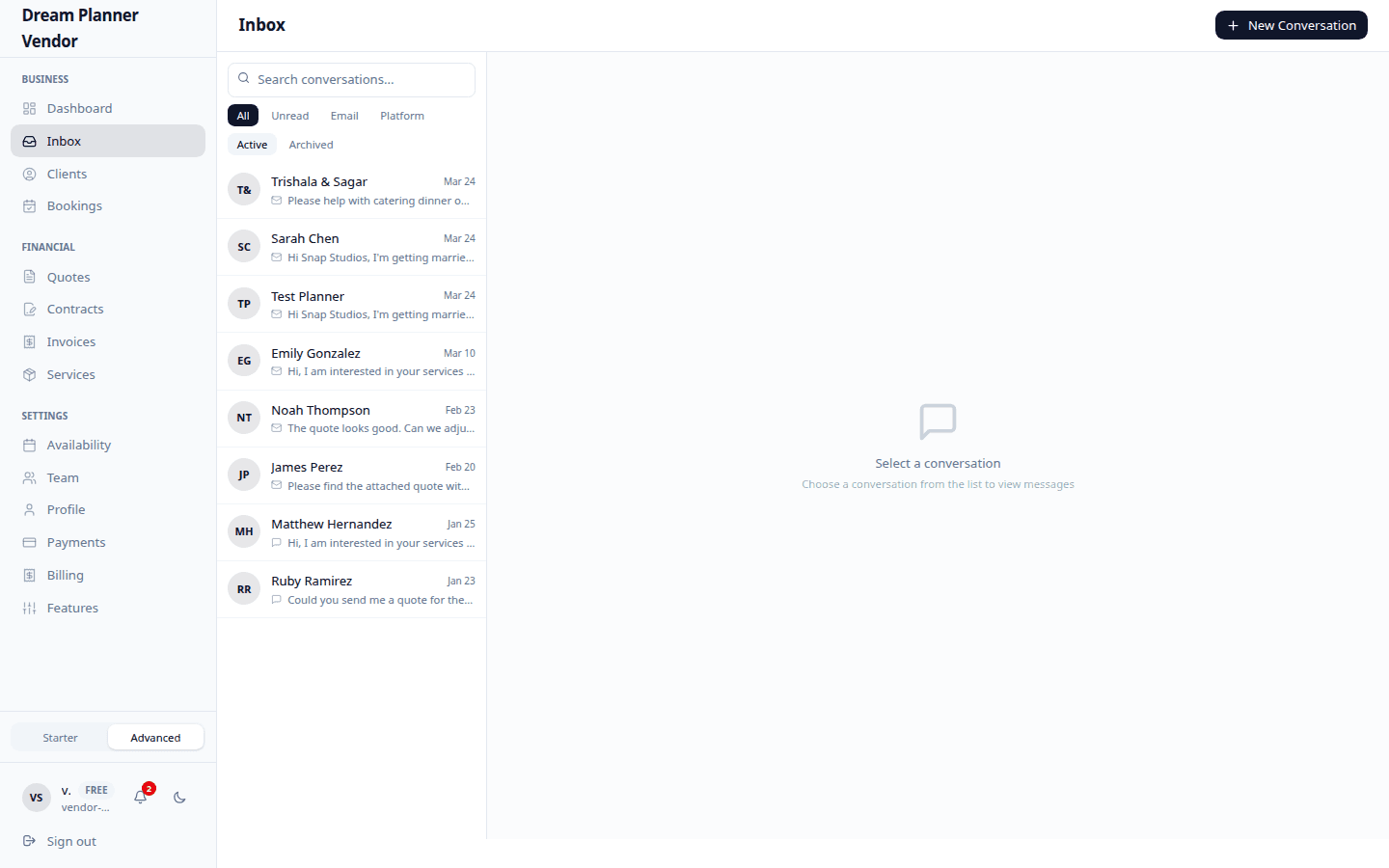 Quotes are created and managed from your vendor portal inbox and quotes section.
Editing a Quote
You can edit a quote at any time while it is in Draft status. Once a quote has been sent, you cannot modify it. If you need to change a sent quote, create a new version.
- Go to Quotes and click on the quote you want to edit.
- Make your changes to line items, tax, validity, payment terms, or notes.
- Click Save.
Sending a Quote to a Client
When you send a quote, the client receives an email with a secure link to view the quote. No DreamPlan account is required.
- Open the quote.
- Review all details for accuracy.
- Click Send.
- The quote status changes from Draft to Sent.
Client View via Token URL
Each sent quote has a unique, secure token URL. When a client clicks the link in their email, they see:
- Your business name and contact details
- The full line-item breakdown with quantities and prices
- Subtotal, tax, and total
- Validity period and payment terms
- Any notes you included
- Buttons to Accept or Decline the quote
The client does not need to create an account or log in. The link is private and unique to that quote.
Quote Statuses
| Status | Meaning |
|---|---|
| Draft | The quote has been created but not yet sent. You can still edit it. |
| Sent | The quote has been delivered to the client. Waiting for their response. |
| Accepted | The client has accepted the quote. |
| Declined | The client has declined the quote. |
Linking Contracts to Quotes
You can attach a contract to a quote so the client can review terms and sign alongside accepting the quote.
- Open the quote (in Draft or Sent status).
- Click Link Contract.
- Select an existing contract or create a new one.
- Save the quote.
When the client views the quote, they will also see the linked contract and can sign it directly from the same page. See the Contracts page for more on creating and managing contracts.
Tips
Tip: Keep line item descriptions clear and specific. “Wedding photography — 8 hours” is better than “Photography services” because it sets expectations.
Tip: Set a reasonable validity period (14 to 30 days is common). This creates urgency without pressuring the client.
Tip: Always include payment terms on the quote. It avoids confusion later and gives the client confidence in your professionalism.
Tip: If a client declines a quote, ask for feedback. You can create a revised quote with adjusted pricing or scope.
Tip: Link a contract to your quote so the client can accept and sign in a single step, reducing back-and-forth.
FAQ
Can I edit a quote after sending it? No. Once a quote is sent, it is locked. If you need to make changes, create a new quote.
What happens when a client accepts a quote? The quote status changes to Accepted, and you receive a notification. You can then proceed to send an invoice or begin the booking process.
Can I send a quote to someone who does not have a DreamPlan account? Yes. The client views the quote via a secure token URL and does not need an account.
Is there a limit to the number of line items on a quote? There is no strict limit. Add as many line items as needed to clearly describe your services.
Can I duplicate an existing quote? Yes. Open an existing quote and use the duplicate option to create a copy that you can modify for a new client or event.
What currency are quotes displayed in? Quotes are displayed in AUD (Australian dollars).