Getting Started
This guide walks you through creating your account, setting up your first event, and finding your way around the Dream Planner dashboard. By the end, you will have a fully configured event ready for planning.
Overview
Dream Planner is designed to get you up and running in minutes. The process is straightforward:
- Create your account with an email and password.
- Verify your email address.
- Walk through the welcome tour.
- Create your first event using the Guided Wizard or Quick Start.
- Explore the dashboard and start planning.
Whether you are organising a wedding for 300 guests or a birthday dinner for 20, the setup process is the same. You can always adjust your event details, add features, and customise your experience as you go.
Creating Your Account
- Visit portal.dreamplan.sagargandecha.dev in your browser.
- Click the Sign Up button on the login page.
- Enter your email address and choose a password.
- Click Create Account.
- Check your email inbox for a verification message from Dream Planner. Click the Verify Email link in the message.
- After verification, you will be redirected to the Dream Planner dashboard automatically.
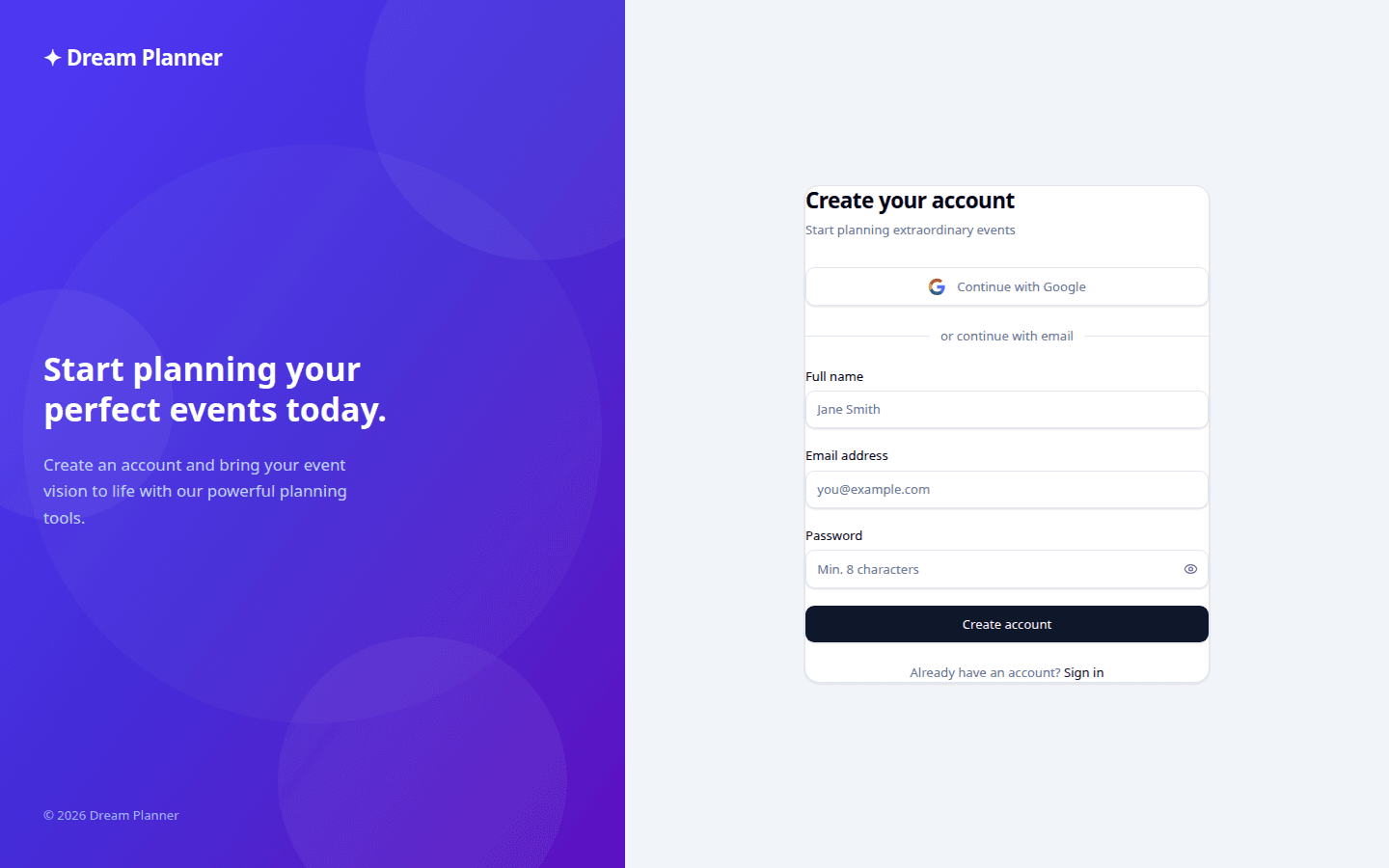 The sign-up form asks for your email address and a password.
Tip: Use a strong password with at least 8 characters, including a mix of uppercase and lowercase letters, numbers, and symbols. Dream Planner uses Supabase Auth, so your credentials are stored securely and never visible to the platform team.
Tip: If the verification email does not arrive within a few minutes, check your spam or junk folder. Some email providers may delay delivery. You can request a new verification email from the login page.
Welcome Walkthrough
On your first sign-in, a welcome modal appears with three slides introducing the platform’s highlights:
| Slide | Title | What It Covers |
|---|---|---|
| 1 | Plan your event in one place | A quick overview of the event dashboard, showing how your checklist, budget, guests, and vendors all live in a single view. |
| 2 | Email forwarding | Every event gets a dedicated inbox address. Forward vendor emails to that address and they appear in your event’s Messages tab automatically. |
| 3 | Guest RSVP with one link | Share a single RSVP link with all your guests. They can confirm attendance, indicate dietary needs, and note plus-ones without creating an account. |
You can click through each slide at your own pace or dismiss the modal at any time. The walkthrough will not appear again after you close it.
For a deeper look at onboarding features including feature modes and the milestone tracker, see Planner Onboarding.
Creating Your First Event
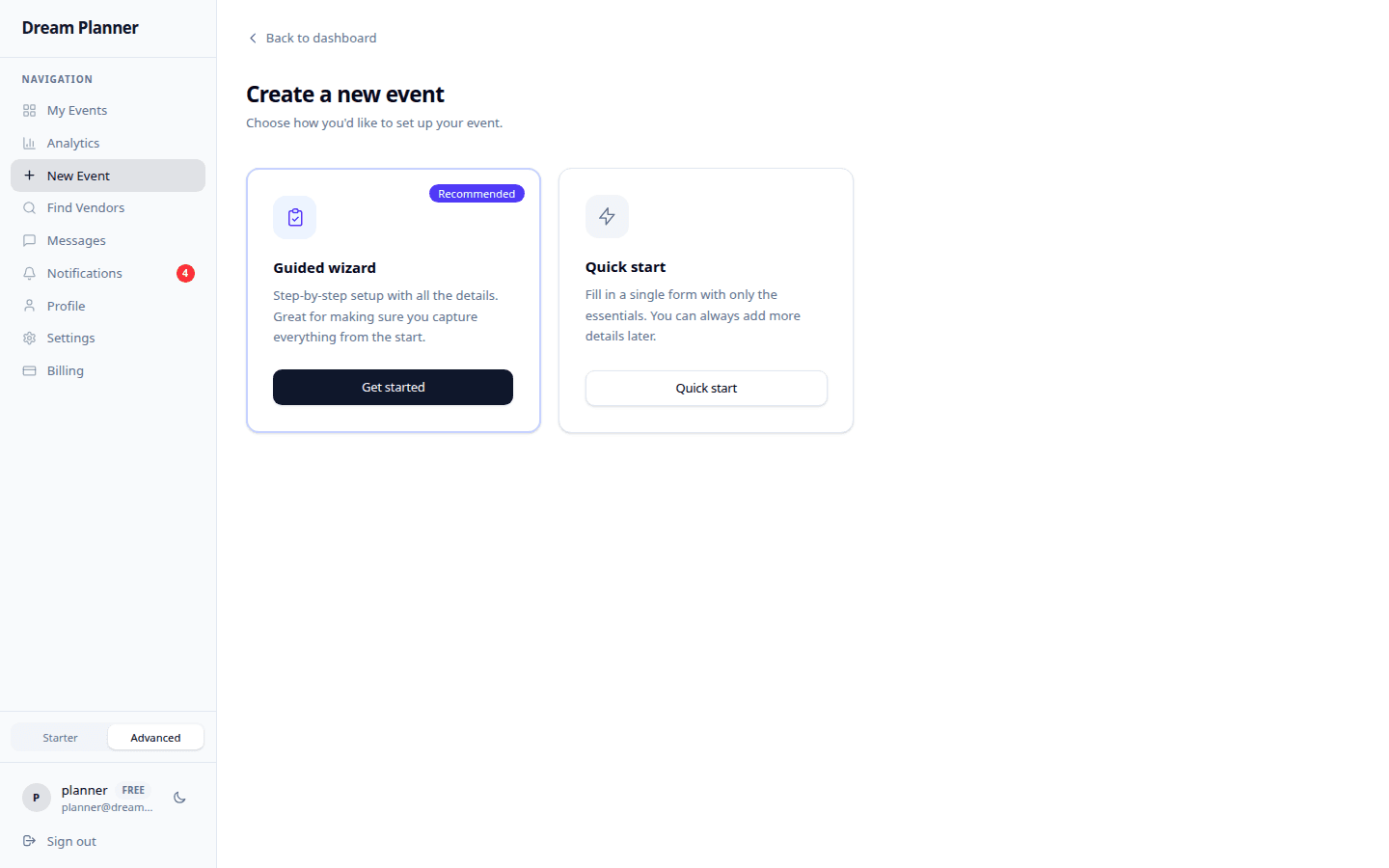
Once you are signed in, you will land on the dashboard. If you have no events yet, you will see a prompt to create your first one. Dream Planner offers two ways to create an event:
Guided Wizard (Recommended)
The Guided Wizard walks you through setting up your event step by step. This is the best option if you are new to the platform or want to make sure you do not miss anything.
- Click the Create Event button on the dashboard.
- Select Guided Wizard when prompted.
- Fill in each step of the wizard:
| Step | Field | Description |
|---|---|---|
| 1 | Event Name | Give your event a memorable title, for example “Sarah & Tom’s Wedding” or “Annual Company Gala”. |
| 2 | Event Type | Choose from: Wedding, Birthday, Corporate, Social, Milestone, or Custom. This determines which checklist template is suggested. |
| 3 | Event Date | Pick the date your event will take place. You can change this later if the date is not confirmed yet. |
| 4 | Location | Add a venue name or address. This is optional at this stage and can be filled in later. |
| 5 | Description | Add any additional notes about your event, such as a theme, special requirements, or key details to remember. |
- After the final step, the wizard suggests a checklist template based on your event type. For example, a wedding event will be offered a wedding planning checklist with tasks like “Book venue”, “Order invitations”, and “Arrange catering”. You can accept the template, choose a different one, or skip this step entirely.
- Click Create Event to save.
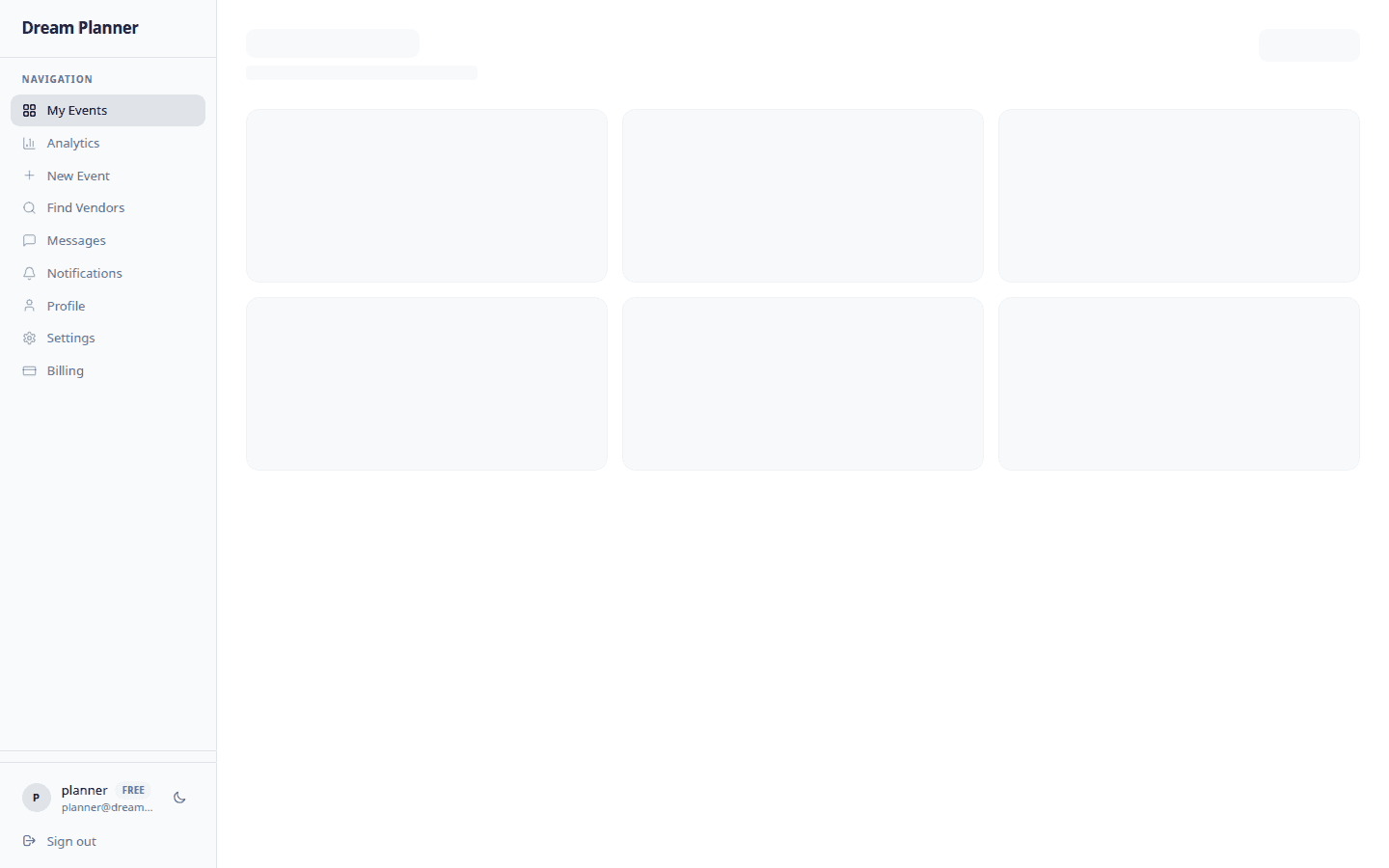 The events dashboard after creating your first event.
Quick Start
For experienced planners who know what they need, the Quick Start form lets you create an event with minimal information:
- Click the Create Event button on the dashboard.
- Select Quick Start when prompted.
- Enter just three fields: Event Name, Event Type, and Event Date.
- Click Create Event.
You can fill in location, description, and all other details from the event dashboard later.
Event Draft Status
Every new event starts in draft status. This means:
- Your event is private and not visible to vendors until you choose to publish it.
- You can take your time adding guests, setting up your budget, building your checklist, and configuring every detail.
- When you are ready, you can change the status to make it active.
Tip: There is no rush to move out of draft status. Use it as your setup period to get everything organised before you start reaching out to vendors.
Navigating the Dashboard
The dashboard is your home base for every event. Here is what you will find.
Event Overview
The main overview page shows a summary of your event with key statistics at a glance:
- Days until event — A countdown to the big day, displayed prominently at the top.
- Checklist progress — A progress ring showing how many tasks are completed vs. total tasks.
- Budget summary — Your total estimated spend, total actual spend, and remaining budget displayed with a visual chart.
- Guest count — Total guests invited, number confirmed, number declined, and number awaiting response.
- Vendor count — How many vendors you have shortlisted and how many are confirmed/booked.
 The event overview dashboard with progress rings, budget summary, guest counts, and quick actions.
Sidebar Navigation
Use the sidebar on the left to navigate between different sections of your event:
| Section | What It Does |
|---|---|
| Overview | Event summary with progress rings, key stats, and contextual quick actions. This is your starting point each time you open an event. |
| Checklist | Manage your planning tasks on a kanban board with columns for to-do, in progress, and done. Add tasks manually or from templates. Set due dates and categories. See Checklist Guide. |
| Budget | Track estimated and actual expenses across categories like venue, catering, photography, and decorations. View charts and get over-budget alerts. See Budget Tracker. |
| Guests | Build and manage your guest list. Add guests one by one or import a CSV file. Track RSVP responses, dietary requirements, and plus-ones. Generate and share your public RSVP link. See Guest Management. |
| Vendors | Search the vendor directory, shortlist your favourites, compare up to 4 vendors side by side, and send enquiries. See Vendor Search. |
| Seating | Assign guests to tables using a drag-and-drop canvas view or a structured list view. See dietary summaries per table and export your plan. See Seating Planner. |
| Documents | Upload and organise files related to your event, such as contracts, floor plans, mood boards, and inspiration photos. See Documents. |
| Messages | Communicate with your vendors directly through the platform. Conversations are organised by vendor and linked to your event. See Messaging. |
Tip: Some sections may be hidden if you are in Focused mode. Switch to Advanced mode from Settings > Features to see every section. See Planner Onboarding for details on feature modes.
Quick Actions
From the Overview tab, the dashboard surfaces contextual quick actions based on your event’s current state. Common quick actions include:
- Add a checklist item — Jump straight to creating a new task.
- Log an expense — Record a payment or update a budget line item.
- Add a guest — Add someone to your guest list quickly.
- Update event details — Edit the event name, date, location, or description.
- Send a vendor enquiry — Start a conversation with a vendor from the directory.
- Share RSVP link — Copy your public RSVP link to share with guests.
These quick actions change as your event progresses. For example, once you have added guests but not shared your RSVP link, the dashboard will prompt you to share it.
Onboarding Milestone Tracker
After creating your first event, the dashboard displays an onboarding milestone tracker — a checklist of key setup steps designed to help you get the most out of Dream Planner:
| Milestone | What To Do |
|---|---|
| Add your first guest | Go to the Guests section and add at least one guest to your list. |
| Set up your budget | Open the Budget section and create your first budget category or line item. |
| Create a checklist item | Visit the Checklist section and add a task, either manually or from a template. |
| Send a vendor enquiry | Browse the Vendors section, find a vendor you like, and send them an enquiry. |
| Share your RSVP link | Go to the Guests section, copy your RSVP link, and share it with at least one person. |
Each milestone is marked as complete automatically as you take the action. The tracker disappears from your dashboard once all five milestones are done, leaving you with a clean overview.
Tip: You do not need to complete the milestones in any particular order. Work through them naturally as you set up your event.
Feature Modes: Focused vs. Advanced
Dream Planner supports two interface modes to match your comfort level:
| Mode | What You See | Best For |
|---|---|---|
| Focused | A streamlined interface showing only the core features: checklist, budget, guests, and vendors. Some advanced sections like seating and documents are hidden. | New users, smaller events, or anyone who prefers simplicity. |
| Advanced | The full interface with every feature visible, including seating planner, document storage, payment milestones, vendor recommendations, and more. | Experienced planners, large events, or anyone who wants access to everything. |
You can switch between modes at any time:
- Click your profile icon in the top-right corner of the dashboard.
- Go to Settings.
- Open the Features tab.
- Toggle between Focused and Advanced mode.
Your choice is saved to your account and applies to all your events.
Tip: Start in Focused mode when you first create your account. Once you are comfortable with the basics, switch to Advanced mode to unlock the full power of the platform.
Install as an App (PWA)
Dream Planner works as a Progressive Web App (PWA). This means you can install it on your phone, tablet, or desktop computer and use it like a native app, complete with a home screen icon and full-screen experience.
For step-by-step installation instructions for different devices and browsers, see the PWA Install Guide.
Key Concepts
Before you dive deeper into the guides, here are the core concepts you will encounter throughout Dream Planner:
| Concept | What It Means |
|---|---|
| Event | The central object in Dream Planner. Everything (guests, budget, checklist, vendors, seating) belongs to an event. You can have multiple events at once. |
| Vendor | A business or individual that provides services for events, such as a photographer, caterer, florist, or venue. Vendors have their own portal and profile. |
| Guest | A person invited to your event. Guests can RSVP through a shared link without creating a Dream Planner account. |
| Budget Item | A line item in your event’s budget, belonging to a category (e.g., “Venue deposit” under “Venue”). Each item has an estimated cost and an actual cost. |
| Checklist Item | A task in your event’s planning checklist. Tasks have a title, optional due date, category, and status (to-do, in progress, done). |
| Enquiry | A message sent from a planner to a vendor expressing interest in their services. This starts the conversation in the messaging system. |
| Quote | A formal pricing proposal sent by a vendor to a planner, with line items, totals, and an expiry date. |
| Invoice | A payment request sent by a vendor to a planner, which can be paid through Stripe Connect. |
| Contract | A formal agreement between a planner and vendor, created from a template and signed electronically by both parties. |
| RSVP Link | A unique public URL for your event that guests can visit to confirm attendance, indicate dietary needs, and note plus-ones. |
Tips
- Bookmark your dashboard. Since Dream Planner is a web app, bookmarking portal.dreamplan.sagargandecha.dev gives you one-click access.
- Use the Guided Wizard for your first event. Even if you are an experienced planner, the wizard ensures you do not miss any setup steps and gives you a head start with a checklist template.
- Start in Focused mode. The simpler interface helps you learn the platform without feeling overwhelmed. Switch to Advanced mode once you are ready.
- Complete the onboarding milestones. They are designed to introduce you to the five most important features in the platform.
- Install the PWA. Having Dream Planner on your home screen means you can check your event status, update your guest list, or message a vendor in seconds.
- Forward vendor emails. If a vendor emails you outside the platform, forward the email to your event’s dedicated inbox address. The message will appear in your Messages tab so everything stays in one place.
FAQ
Can I create more than one event? Yes. You can create and manage multiple events from the same account. Each event has its own dashboard, checklist, budget, guest list, and vendor list. Free accounts have a limit on the number of active events. See Subscription Tiers for details.
Can I change my event type after creating it? Yes. Go to your event’s Overview tab, click Edit Event Details, and change the event type. Note that changing the type does not automatically update your checklist template, but you can add a new template at any time from the Checklist section.
What happens if I skip the welcome walkthrough? Nothing. The walkthrough is informational only. You can always find the same information in these docs. The walkthrough will not appear again after you dismiss it.
Is my data private? Yes. Your event data is private to your account. Vendors can only see information you explicitly share with them through enquiries, messages, or guest data sharing. See Guest Data Sharing for details on how vendor access to guest information works.
Can I use Dream Planner on my phone? Yes. The platform is fully responsive and works in any modern mobile browser. For the best experience, install it as a PWA. See PWA Install Guide.
Next Steps
Now that your account is set up and your first event is created, explore the feature guides to start planning:
- Planner Onboarding — Feature modes, the getting-started checklist, and progressive disclosure
- Checklist Guide — Build your planning tasks with templates, kanban boards, and due dates
- Budget Tracker — Set up your budget with categories, estimates, and actual costs
- Payment Schedule — Track deposits, instalments, and payment deadlines
- Guest Management — Build your guest list, import CSV files, track RSVPs, and share RSVP links
- Vendor Search & Management — Find, shortlist, compare, and book vendors
- Vendor Recommendations — Get smart suggestions based on your event details
- Seating Planner — Assign guests to tables with drag-and-drop canvas and list views
- Documents — Store contracts, mood boards, and event files
- Messaging — Communicate with vendors directly through the platform